
Documentation
Upgrade Code
Every time a new version of the app is released on CodeCanyon, you can download it for free — updates are included for life. This page walks you through moving your project to a newer version without losing any of your work.
The idea is simple: back up the handful of files that contain your customisations, replace the rest of the project with the new version, then put your files back.
-
01
Back up your files Copy your
.env, Firebase files, signing key and custom assets to a safe folder. -
02
Download the new version Grab the latest ZIP from your CodeCanyon Downloads page.
-
03
Unzip into a new folder Extract to a fresh folder — never on top of your existing project.
-
04
Restore your saved files Copy each backed-up file into the same location inside the new project.
-
05
Test that it still works Run
flutter pub get, launch the app, and verify every feature still works.
Why you need to back up first
When you unzip a new version of the app, everything in the old project folder gets replaced with the fresh code. If you skip the backup step, you will lose:
- Your environment file — the
.envfile that stores your Firebase, AdMob, AppLovin and other keys. Without it, the app has nothing to connect to. - Your Firebase files — the small files Firebase generated for your project. Without them, Firebase services stop working.
- Your Android signing key — the file that proves your app is yours. Without it, Google Play will refuse any future update, because the key won't match the one you originally published with. This one is critical.
- Any custom assets you've swapped in — app icon, images, animations, splash screen, etc.
- Any trivia data you've edited — the questions, categories, or logo images specific to your app.
None of this is stored on the internet. If you lose these files locally, they're gone.
Step 1 — Back up your files
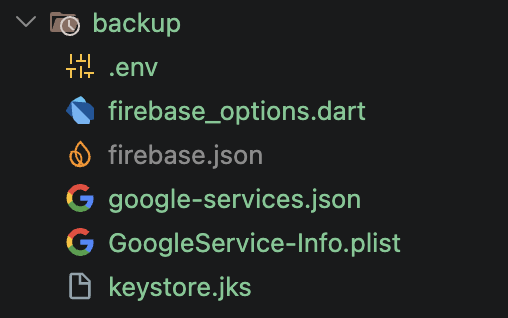
Before touching anything else, create a folder somewhere safe (outside the project folder) — for example, on your Desktop or in a cloud-synced folder like Dropbox / Google Drive — and copy the following files into it from your current project:
| What to copy | Where to find it in the project |
|---|---|
.env | Root of the project (the top-level folder). |
google-services.json | android/app/ |
GoogleService-Info.plist | ios/Runner/ |
firebase_options.dart | lib/ |
firebase.json | Root of the project. |
keystore.jks (Android signing key) | android/app/ |
| Any customised assets | Usually assets/ — icons, images, animations you replaced. |
| Any customised trivia data | See Customisation → Trivia Data Customisation for the exact files. |
Tip. The safest habit is to keep this backup folder up to date all the time, not just at upgrade time. Every time you change something important — a key, an icon, the signing key — copy the file to your backup folder immediately. If your computer ever fails, you'll thank yourself.
Step 2 — Download the new version
- Open CodeCanyon and sign in with the account you bought the app with.
- Go to your Downloads page and find Logo Quiz in the list.
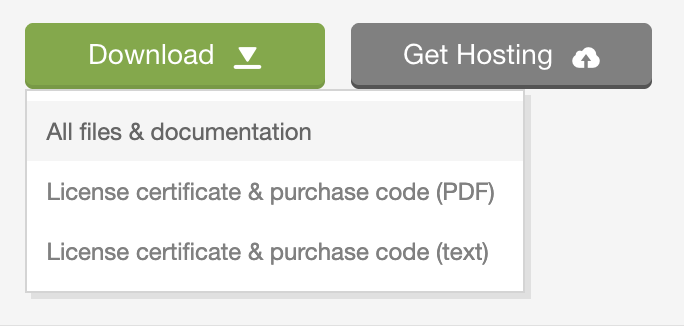
- Click Download → All files & documentation to get the new ZIP.
Step 3 — Unzip the new version
Unzip the download into a brand new folder — don't unzip it on top of the old project. Naming the new folder with the version number (for example logo-quiz-v1.3/) makes it easy to keep track of which version you're on.
Once unzipped, you can safely rename or archive your old project folder — you'll be working from the new one from now on.
Step 4 — Put your saved files back
Open your backup folder from Step 1 and copy each file into the same location inside the new project folder. For example:
.env→ root of the new projectgoogle-services.json→android/app/GoogleService-Info.plist→ios/Runner/keystore.jks→android/app/- …and so on.
If a file with the same name already exists in the new project, replace it with your backed-up copy.
Step 5 — Test that it still works
Open a terminal in the new project folder and run:
flutter pub getThis tells Flutter to fetch all the dependencies the new version needs. Then run the app on a device or emulator (see Publishing → Build & Publish for the full walkthrough) and make sure:
- The app launches without errors.
- Firebase-powered features (analytics, sign-in, etc.) still work.
- Ads and in-app purchases still appear correctly.
- Your custom icon, images and trivia data are intact.
If everything looks good, you're done — the app is now on the new version.
Upgrading Flutter itself
Sometimes a new release of the app requires a newer version of Flutter. To update Flutter on your computer to the latest stable version, run:
flutter upgradeIf a Flutter update introduces something you need to be aware of, the release notes on CodeCanyon will call it out.
Something went wrong?
If the new version won't build or the app crashes on startup:
- Double-check that all the files listed in Step 1 were copied back to the correct locations.
- Run
flutter cleanin the project folder, thenflutter pub getagain — this clears any leftover build files from the old version.
FAQ
Frequently asked questions
Where do I get the latest version of the app?
On your CodeCanyon Downloads page, signed in with the account you bought the app with. Updates are free for life — see the Upgrade Code page for the safe way to move to a new version.Do I need a Mac to publish on the App Store?
Yes. Building an iOS `.ipa` file requires Xcode, which only runs on macOS. Android builds work on any operating system.Why don't in-app purchases work when I install the APK on my phone?
In-app purchases, Play Games and other Google Play services only unlock when the build is uploaded to a Play Console track (Internal testing is the fastest) and installed via the Play Store on a device signed in as a tester.Do you provide the source code?
Yes — every CodeCanyon purchase includes the full Flutter source code plus all assets, so you can customise anything.Can I use the same license for two different apps?
No. Envato's Regular License covers a single end product. If you want to publish a second app based on the same template, buy a second license on CodeCanyon.How long does store review take?
Google Play: a few days for the very first submission, then a few hours to a day for updates. Apple App Store: usually 24–48 hours per submission.