
Documentation
Setup Page
The Setup Page is a small configuration screen that opens in your browser and lets you fill in every setting the app needs — app name, icon, ad IDs, Firebase details, in-app purchase products, and so on — without touching any code. Behind the scenes, it saves everything into the .env file you created in the previous step.
What it is
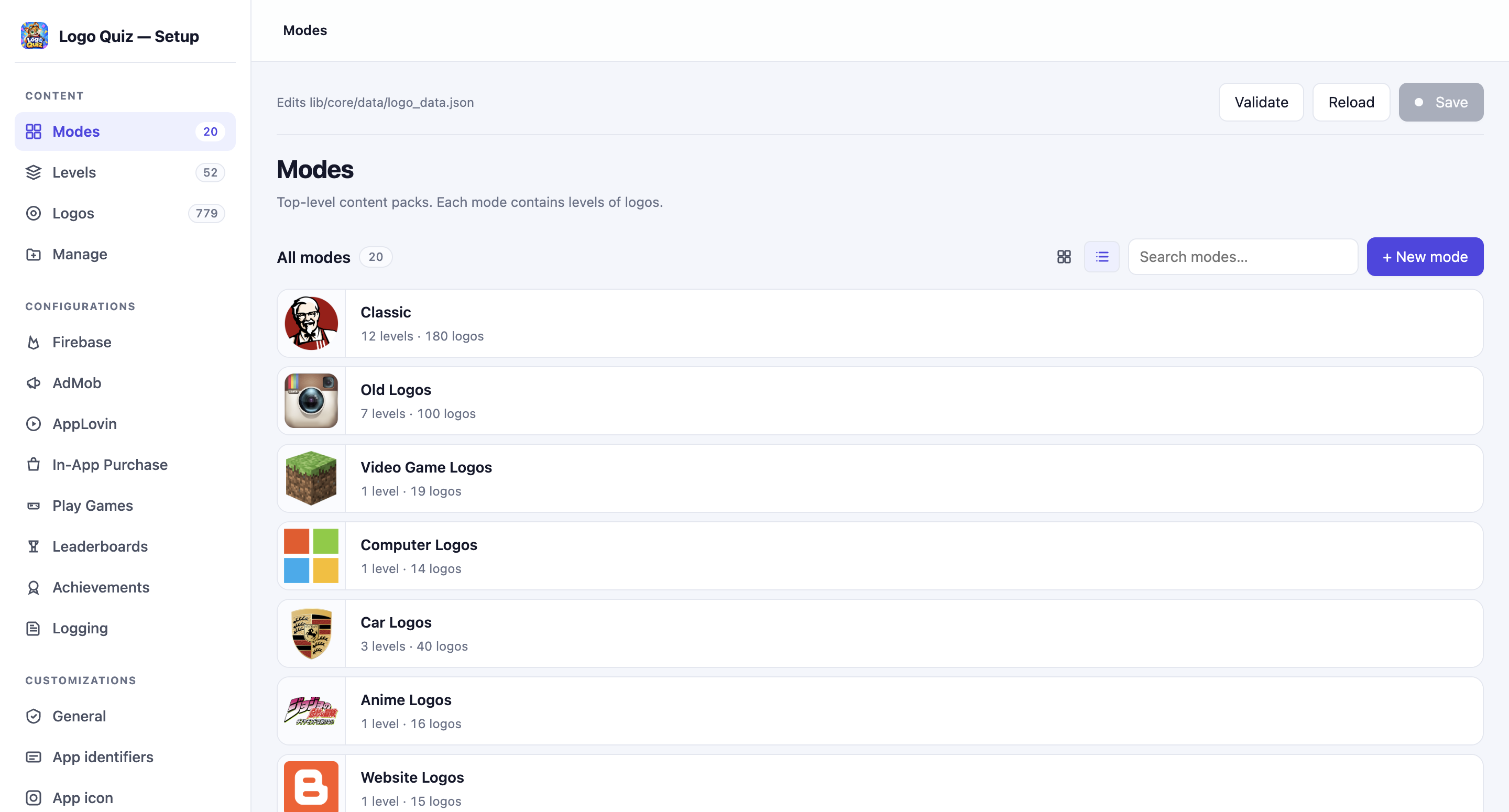
The Setup Page is a file called setup.html that lives in the root of your project. Double-click it (or right-click → Open with → your browser) to open it. That's it — no server to run, no login, no internet needed. It works entirely on your computer and only reads and writes files inside your own project folder.
Inside, you'll find every configuration option grouped into clear sections: General, App IDs, Firebase, AdMob, AppLovin Max, In-App Purchase, Play Games, and so on. Each section matches a page in this documentation, so if you're not sure what a field means, jump to the matching page for a walkthrough.
Filling it in
- Fill in only the sections you need. If you're not using AdMob yet, leave that section alone — features stay disabled until you turn them on.
- Every section has a Save button. Click it after making changes; that section is written into
.envimmediately. - You can come back and change values at any time — the Setup Page will show you what's currently saved.

Important — run the sync command after every change
This step is essential. Every time you save changes on the Setup Page, you must run the sync command in a terminal inside the project folder:
make syncWhy?
When you save on the Setup Page, your values land in .env. But .env on its own isn't enough — a few other files inside the project also need to be updated with those same values, for example:
- The Dart file the app reads at runtime.
- The Android and iOS project files that set your app's display name.
- The AdMob and Play Games IDs baked into the Android and iOS build configs.
- The version number that Google Play and the App Store check against.
The make sync command handles all of that in one go — it reads your .env and quietly patches every file that needs your values. If you skip it, your changes won't reach the app, even though .env is up to date.
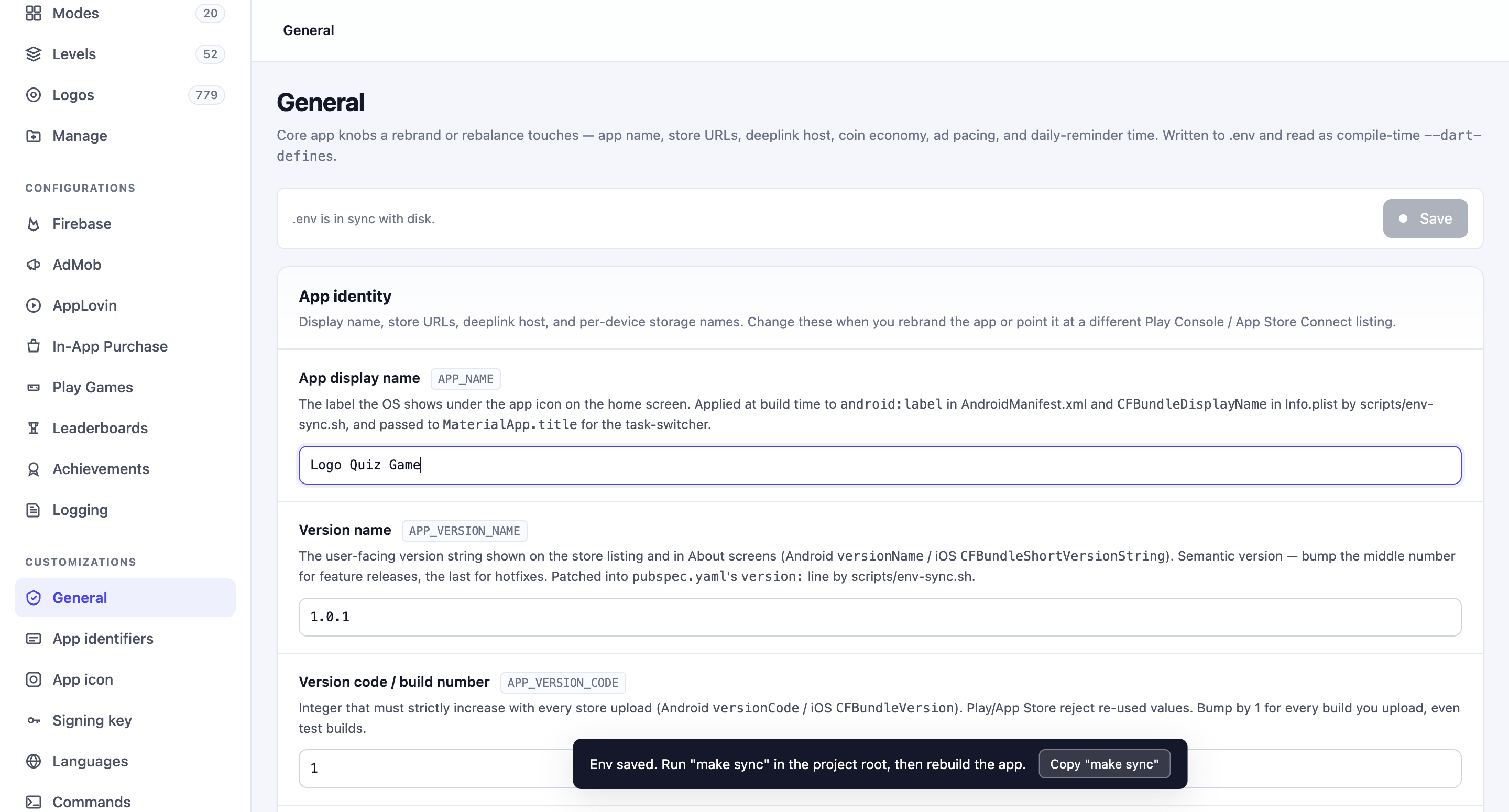
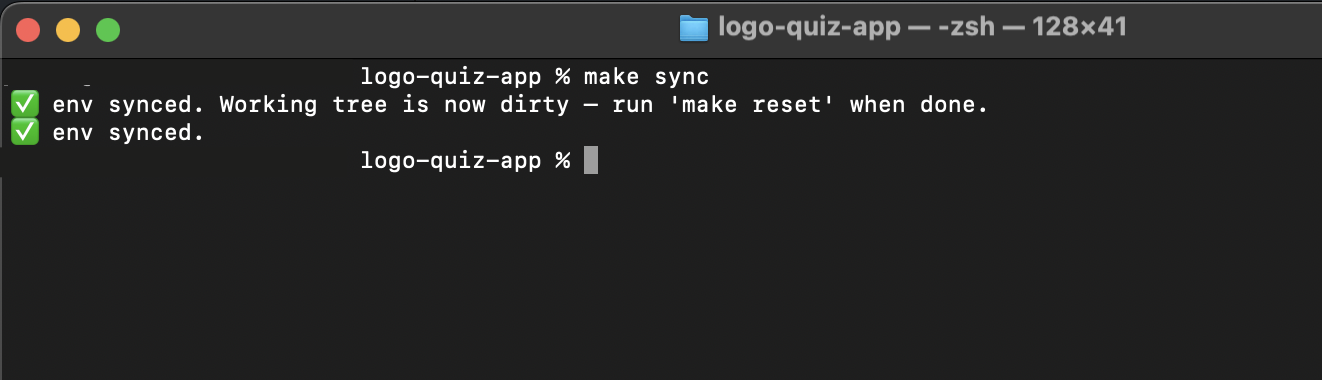
Get into the habit: save on the Setup Page → run make sync → build/run the app.
Recommended setup order
Work through the Installation section top to bottom for the smoothest first-time setup:
- Environment — done (previous page).
- Setup Page — this page.
- General — app name, version numbers, coin economy, ad pacing.
- App IDs — Android package name and iOS bundle ID. Set these carefully — you can never change them once the app is published to the stores.
- Android Signing Key — required before you build a release version.
- Firebase — connect the app to your Firebase project.
Then move on to Customisation (trivia data, app icon, images & animations, languages — optional, and in any order you like) and Services (AdMob, AppLovin Max, IAP, Play Games, etc. — turn on only the features you plan to use). When everything is in place, finish with Publishing → Build & Publish.
Undoing changes
If something goes wrong and you want to reset the project files back to their original placeholder state, run:
make reset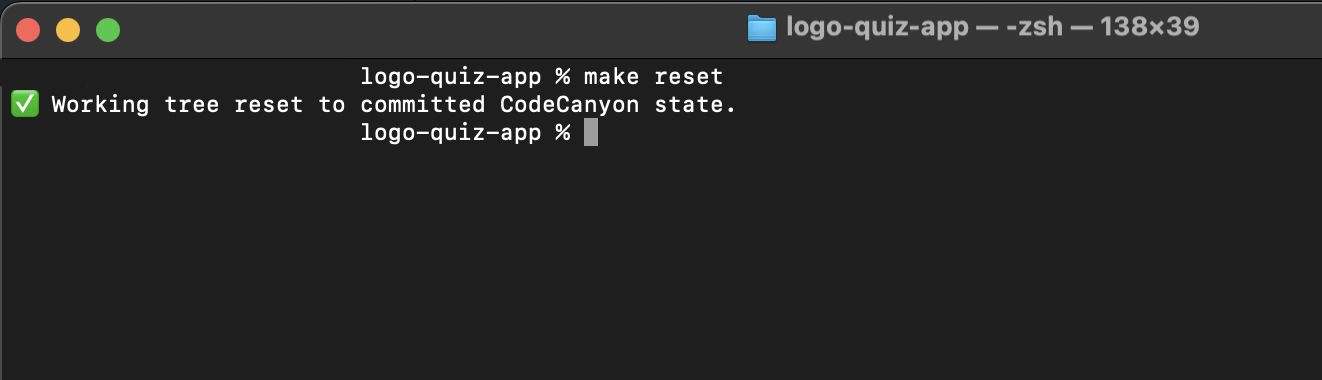
This only resets the files that make sync patches. Your .env, Firebase files, and signing key are never touched — they're always safe.
FAQ
Frequently asked questions
Where do I get the latest version of the app?
On your CodeCanyon Downloads page, signed in with the account you bought the app with. Updates are free for life — see the Upgrade Code page for the safe way to move to a new version.Do I need a Mac to publish on the App Store?
Yes. Building an iOS `.ipa` file requires Xcode, which only runs on macOS. Android builds work on any operating system.Why don't in-app purchases work when I install the APK on my phone?
In-app purchases, Play Games and other Google Play services only unlock when the build is uploaded to a Play Console track (Internal testing is the fastest) and installed via the Play Store on a device signed in as a tester.Do you provide the source code?
Yes — every CodeCanyon purchase includes the full Flutter source code plus all assets, so you can customise anything.Can I use the same license for two different apps?
No. Envato's Regular License covers a single end product. If you want to publish a second app based on the same template, buy a second license on CodeCanyon.How long does store review take?
Google Play: a few days for the very first submission, then a few hours to a day for updates. Apple App Store: usually 24–48 hours per submission.