

Documentation
Firebase
The app uses Firebase — Google's backend platform — to power features like analytics, crash reporting, cloud save (so players' progress syncs across devices), and push notifications. This page walks you through creating a Firebase project and connecting it to your app.
You'll spend a couple of minutes in the Firebase website, a couple more in the terminal, and then you're done.
Third-party service — costs & fees. Firebase is a Google service, independent from CodeCanyon and Visuella. It ships with a free Spark plan that covers most small projects, but heavy usage (large numbers of users, big Firestore documents, high push volume, etc.) may require upgrading to the paid Blaze plan and can incur external costs charged directly by Google. Review the current quotas and pricing on firebase.google.com/pricing before scaling up.
Before you start
Make sure you've already installed the Firebase CLI and the FlutterFire CLI — both are covered in Get Started → Prerequisites. If you haven't yet, go back and do that first.
Step 1 — Create a Firebase project
- Open the Firebase Console with your Google account.
- Click Add project.
- Pick a name for the project — anything you like (e.g. "My Logo Quiz").
- Follow the setup wizard. You can enable or skip Google Analytics — either is fine.
- Wait a few seconds until your project is ready.
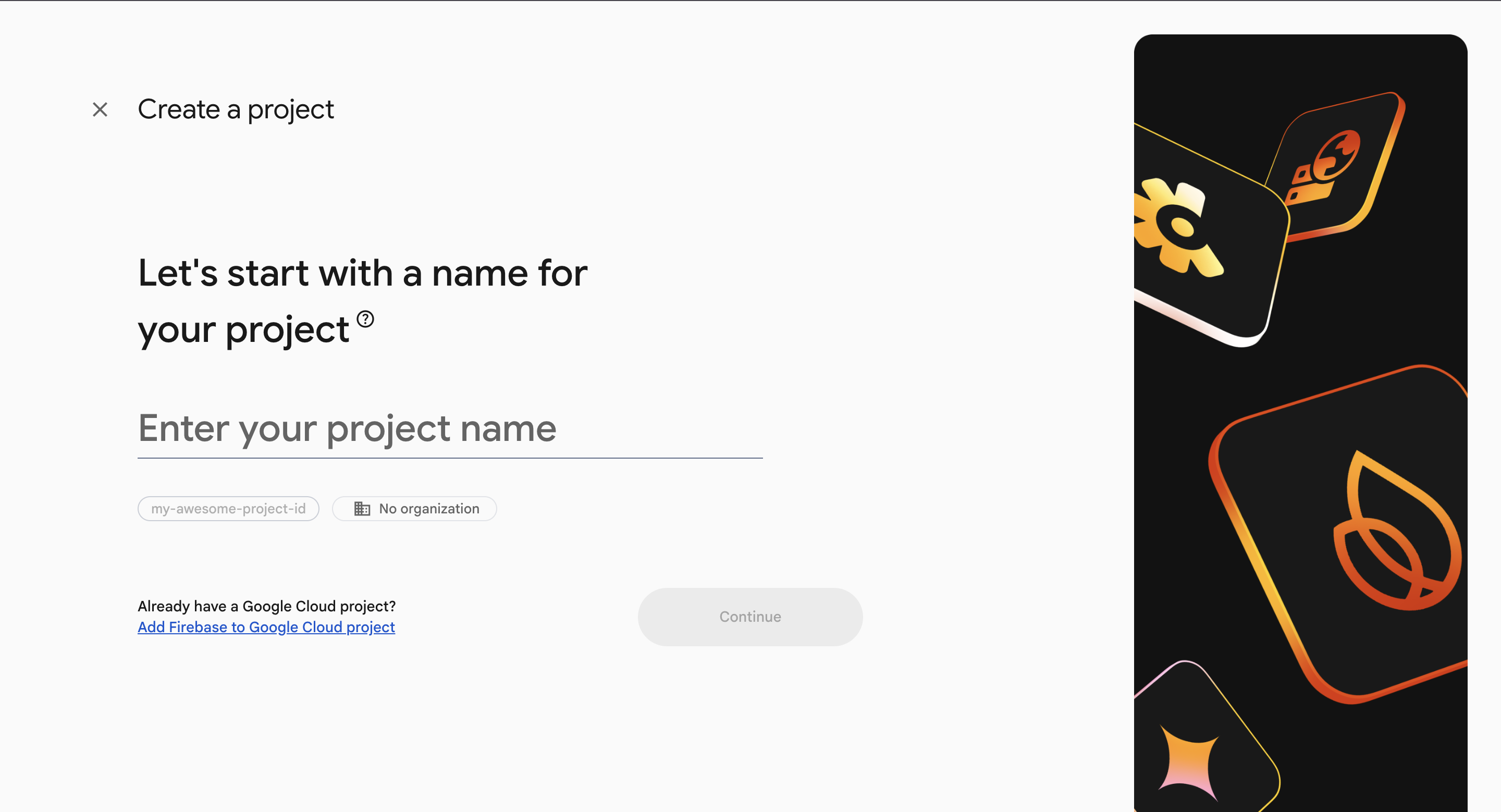
That's it — you don't need to add an Android or iOS app by hand from the Firebase Console. The next step does that automatically.
Step 2 — Log in to Firebase from your terminal
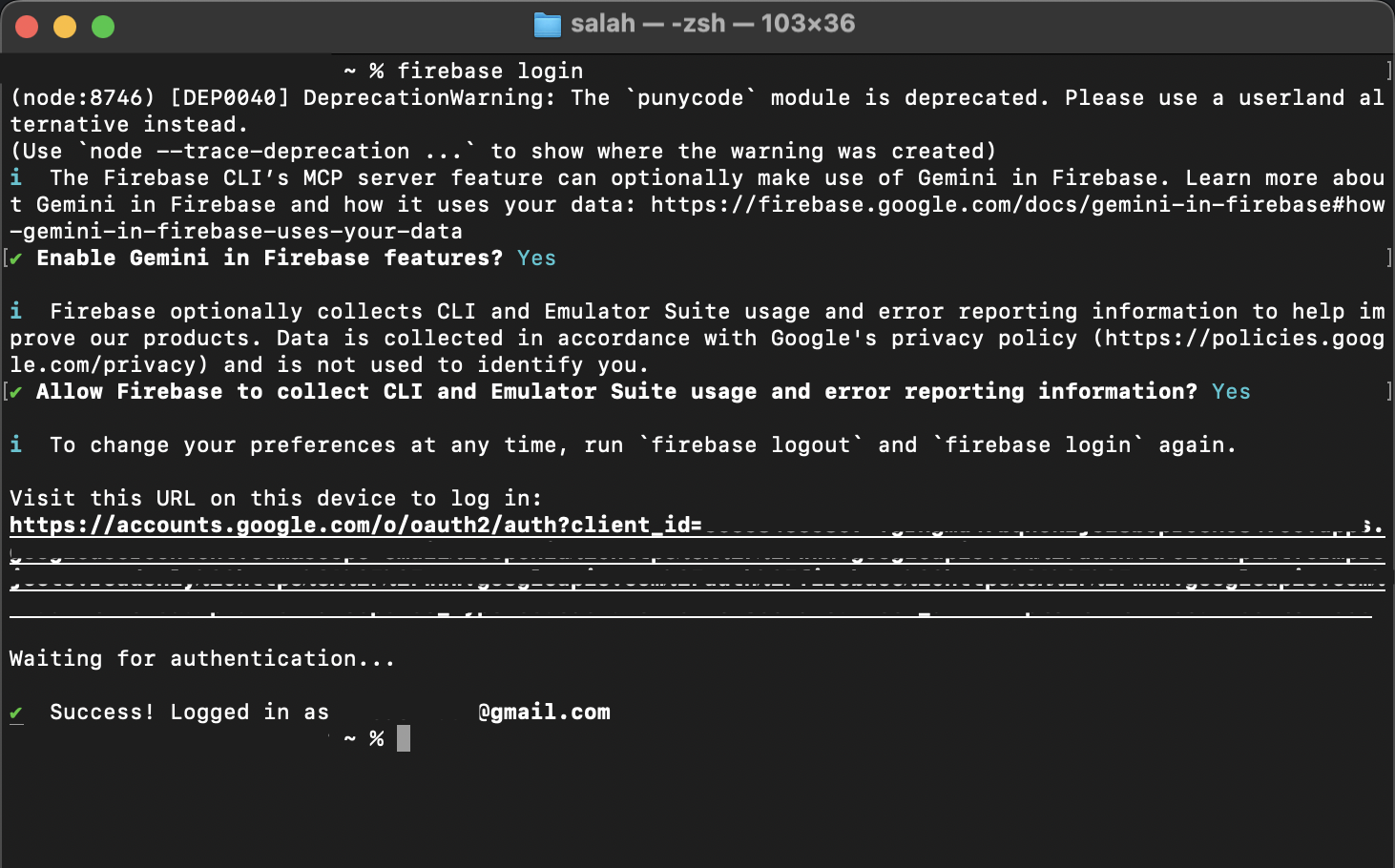
Open a terminal in your project folder and run:
firebase loginThis opens a browser window where you sign in with the same Google account you just used to create the Firebase project. Grant access when asked. You only need to do this once per computer.
Step 3 — Connect your app to Firebase
Still in the terminal (inside the project folder), run:
flutterfire configureThe command asks you a few questions:
- Which Firebase project? — pick the project you created in Step 1.
- Which platforms? — leave both Android and iOS selected (press Enter to confirm).
- Android package name / iOS bundle ID — the command auto-detects the App IDs you set in the previous page.
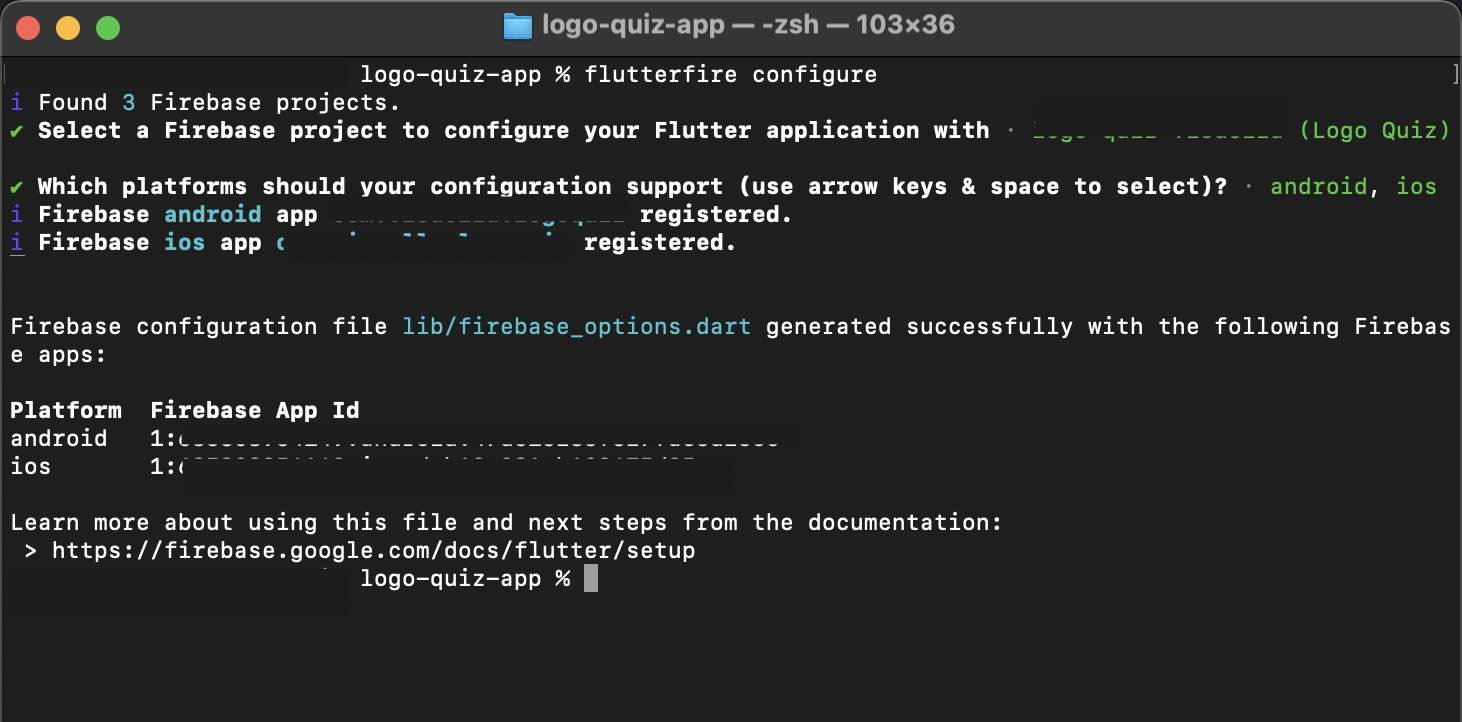
When it's done, four small configuration files are created inside your project. You don't need to open them, edit them, or upload them anywhere — everything is wired up automatically.
Step 4 — Confirm on the Setup Page
Open the Setup Page in your browser and go to the Firebase section. You'll see four rows, one for each configuration file:
firebase.jsonlib/firebase_options.dartandroid/app/google-services.jsonios/Runner/GoogleService-Info.plist
Click Re-check. Every row should turn green with Present. If any row still says Missing, run flutterfire configure again from Step 3 — that means one of the files didn't get written.
Step 5 — Run sync
As with every other setup step, run the sync command in your terminal:
make syncFirebase is now set up. Once you build and run the app, Firebase-powered features will start working.
If you change your App IDs later
Firebase ties its configuration to the exact Android package name and iOS bundle ID you had when you ran flutterfire configure. If you go back to the App IDs page and change either one:
- Come back here.
- Run
flutterfire configureagain. - Pick the same Firebase project.
- Click Re-check on the Setup Page — all four rows should still be green.
Back up your Firebase files
The four files above are gitignored (never uploaded to Git for privacy reasons). If you ever move your project to a new computer, or reset it, you'll need them back — either restore them from a backup or simply re-run flutterfire configure.
FAQ
Frequently asked questions
Where do I get the latest version of the app?
On your CodeCanyon Downloads page, signed in with the account you bought the app with. Updates are free for life — see the Upgrade Code page for the safe way to move to a new version.Do I need a Mac to publish on the App Store?
Yes. Building an iOS `.ipa` file requires Xcode, which only runs on macOS. Android builds work on any operating system.Why don't in-app purchases work when I install the APK on my phone?
In-app purchases, Play Games and other Google Play services only unlock when the build is uploaded to a Play Console track (Internal testing is the fastest) and installed via the Play Store on a device signed in as a tester.Do you provide the source code?
Yes — every CodeCanyon purchase includes the full Flutter source code plus all assets, so you can customise anything.Can I use the same license for two different apps?
No. Envato's Regular License covers a single end product. If you want to publish a second app based on the same template, buy a second license on CodeCanyon.How long does store review take?
Google Play: a few days for the very first submission, then a few hours to a day for updates. Apple App Store: usually 24–48 hours per submission.